IDE Extensions
MockServer publishes IDE extensions so you can manage MockServer, author expectations with full schema validation, and view the live Dashboard without leaving your editor. Two extensions are available:
| IDE | Extension | Registry |
|---|---|---|
| VS Code (and Theia / Gitpod / Cursor) | mockserver.mockserver | VS Code Marketplace & Open VSX |
| IntelliJ IDEA (and all JetBrains IDEs) | com.mock-server.mockserver | JetBrains Marketplace |
VS Code Extension
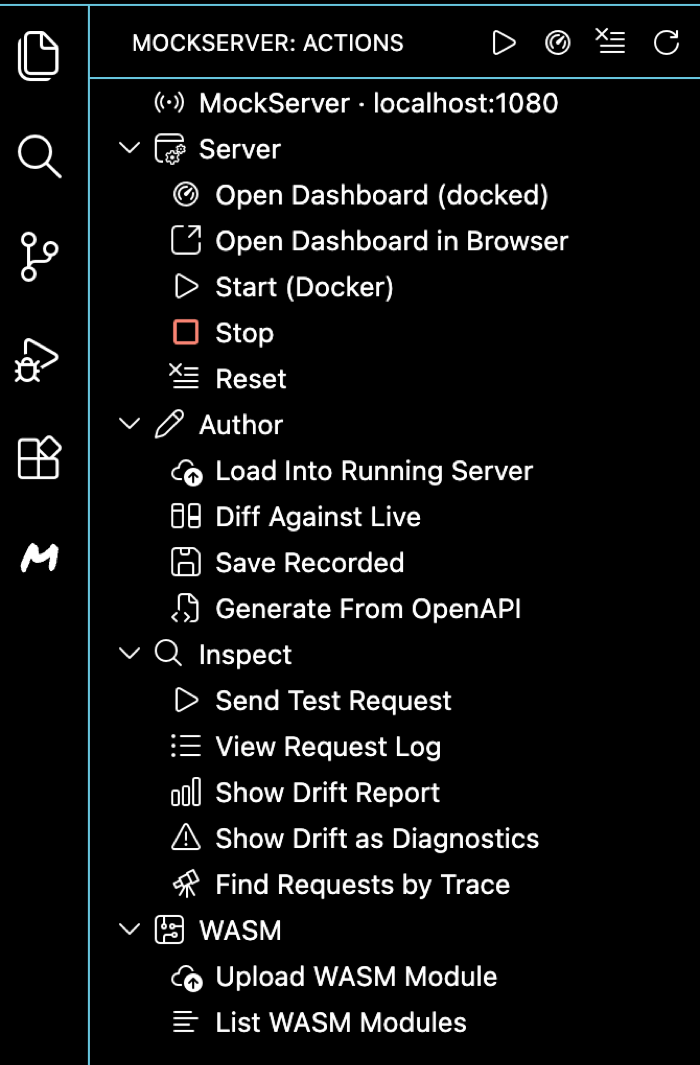
The MockServer extension for Visual Studio Code provides a MockServer side panel in the Activity Bar with grouped one-click actions, inline JSON Schema validation and completion for expectation files, a status-bar item showing connection state, the dashboard docked in the bottom panel, and tools for authoring, recording, and debugging expectations without leaving the editor.
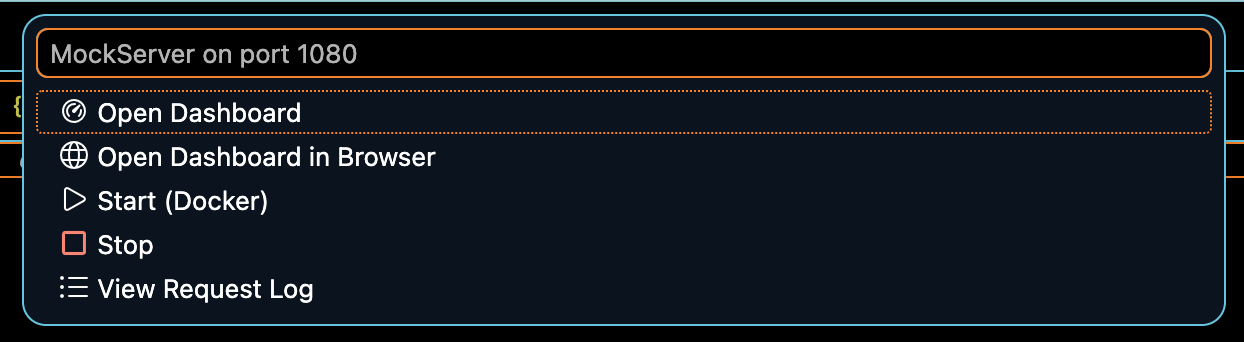
The status-bar item opens a quick menu of the most common actions:
Installation
Install directly from within VS Code:
- Open the Extensions view (Cmd+Shift+X / Ctrl+Shift+X)
- Search for MockServer
- Click Install
Alternatively, install from the command line:
code --install-extension mockserver.mockserverFor Eclipse Theia, Gitpod, Cursor, and other Open VSX compatible editors, install from open-vsx.org.
Prerequisites
- VS Code 1.80+
- Docker Desktop — required only for the Start (Docker) command. No Docker? Use Start (binary, no Docker) instead, or point the extension at any already-running MockServer instance
Commands
Open the Command Palette (Cmd+Shift+P / Ctrl+Shift+P) and type MockServer:
| Command | What it does |
|---|---|
| MockServer: Start (Docker) | Pulls and starts mockserver/mockserver:9.0.0 on the configured port (default 1080). Requires Docker. |
| MockServer: Start (binary, no Docker) | Starts MockServer from a self-contained binary bundle (a bundled Java runtime + jar — no Docker or separate JDK needed). Uses the bundle at mockserver.binaryPath if set, otherwise (after confirmation) downloads the bundle matching the extension version for your OS/architecture and caches it. The download is checksum-verified fail-closed — if the .sha256 can't be fetched (e.g. behind a TLS-inspection proxy) you're asked to confirm before installing unverified. The server is stopped automatically when you close the editor window. Ideal for corporate machines without Docker. |
| MockServer: Stop | Stops the running MockServer Docker container |
| MockServer: Stop (binary) | Stops the MockServer process started by Start (binary, no Docker) |
| MockServer: Open Dashboard in Browser | Opens the MockServer Dashboard at http://localhost:1080/mockserver/dashboard in your browser |
| MockServer: Open Dashboard | Reveals the live MockServer Dashboard docked in the bottom panel (its own "MockServer Dashboard" view) — no browser switch, and kept separate from your editor tabs |
| MockServer: Load Expectations Into Running Server | Sends the expectations in the active *.mockserver.json(c) file to the running server (CodeLens button also appears inline) |
| MockServer: Save Recorded Expectations | Downloads proxied requests from the server and saves them as a *.mockserver.json expectation file |
| MockServer: Generate From OpenAPI Spec | Generates mock expectations from an OpenAPI specification file and loads them into MockServer |
| MockServer: Send Test Request | Sends the HTTP request defined in the active *.mockserver-request.json file and shows the response |
| MockServer: View Request Log | Opens the request log for the running server in a VS Code output panel |
| MockServer: Show Drift Report | Fetches the drift analysis from /mockserver/drift and opens it as a readable text report |
| MockServer: Show Drift as Diagnostics | Fetches the same drift analysis and surfaces it as inline diagnostics on the matching expectations in the open *.mockserver.json file |
| MockServer: Find Requests by Trace | Looks up all logged requests for a given trace ID and shows them in the editor |
| MockServer: Upload WASM Module | Uploads a compiled .wasm custom rule module to the running server |
| MockServer: List WASM Modules | Lists the WASM rule modules currently loaded on the server |
JSON Schema Validation
Files named *.mockserver.json or *.mockserver.jsonc are automatically validated against the bundled MockServer JSON Schema. You get:
- Auto-completion — IntelliSense-style suggestions for expectation fields, matcher options, and action types as you type
- Inline validation — red squiggles on invalid fields with descriptive hover messages, so you catch mistakes before sending expectations to the server
- Hover documentation — descriptions of every field appear on hover, directly from the schema
JSON Snippets
In any .json or .jsonc file (unlike schema validation, snippets are not restricted to *.mockserver.json(c)), type one of the following prefixes and press Tab to expand a full expectation template:
| Prefix | Inserts |
|---|---|
| mockserver-expectation | A request matcher with an HTTP response action |
| mockserver-forward | A request matcher with a forward proxy action |
| mockserver-verify | A request verification template |
Settings
Configure the extension via Settings > Extensions > MockServer:
- Docker image — override the Docker image used by Start (Docker); defaults to mockserver/mockserver:9.0.0
- Container name — name for the started Docker container
- Port — port MockServer listens on; defaults to 1080
- Binary path (mockserver.binaryPath) — path to a locally-installed binary bundle for Start (binary, no Docker): either the bin/mockserver launcher or the unpacked bundle directory. Leave empty to download and cache the bundle on first use
- Binary version (mockserver.binaryVersion) — bundle version to download; defaults to the extension's own version
Quick Start
- Run MockServer: Start (Docker) from the Command Palette, or point the extension at an already-running instance via Settings
- Create a file named expectations.mockserver.json — schema validation and auto-completion activate automatically
- Run MockServer: Load Expectations (or click the CodeLens button) to send expectations to the server
- Open the MockServer side panel (the MockServer icon in the Activity Bar) for one-click access to every action — Server, Author, Inspect, and WASM — or run MockServer: Open Dashboard to inspect recorded requests and active expectations in the docked dashboard, without leaving VS Code
- Run MockServer: Show Drift Report to spot where real upstream responses have drifted from your stubbed expectations
IntelliJ / JetBrains Plugin
The MockServer plugin for IntelliJ IDEA (and all JetBrains IDEs) embeds the live MockServer Dashboard directly inside the IDE, adds a Tools > MockServer menu, and provides a persistent tool window in the bottom panel — so you can author expectations, inspect traffic, and manage the server without switching windows.
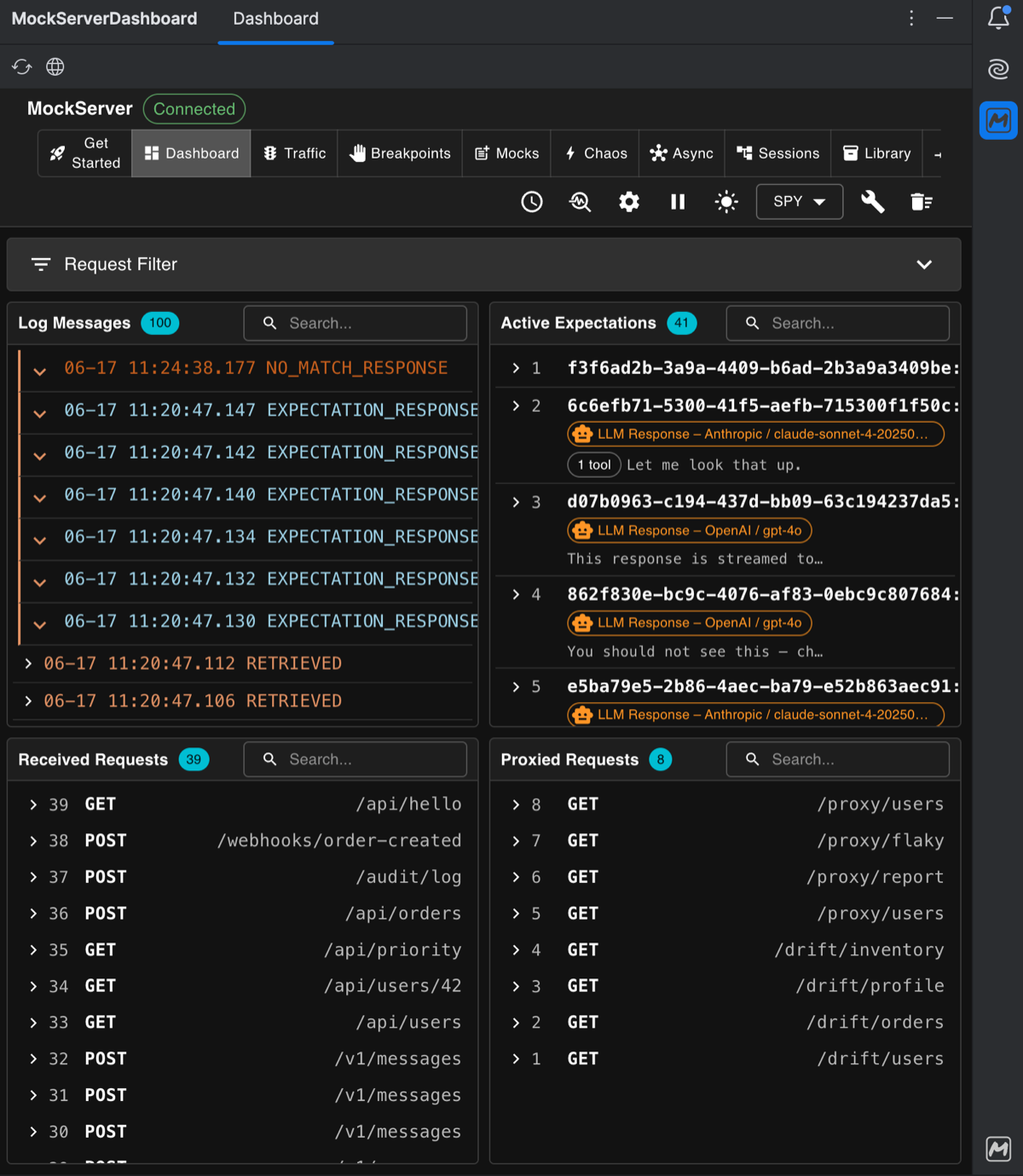
The embedded Dashboard is a full-featured JCEF (Java Chromium Embedded Framework) tool window showing the live event log, active expectations, proxied requests, and all other Dashboard views — identical to the browser Dashboard but docked inside your IDE.
Installation
- Open Settings > Plugins > Marketplace (Ctrl+Alt+S then Plugins)
- Search for MockServer
- Click Install and restart the IDE
Prerequisites
- IntelliJ IDEA 2024.3+ (build 243+) or any JetBrains IDE on IntelliJ Platform 2024.3+
- Docker — required only for the Start (Docker) action. No Docker? Use Start (binary, no Docker) instead, or point the plugin at any already-running MockServer instance
Tool Window and Tools Menu
The MockServer tool window appears in the bottom panel. It contains a status line showing connection state, an inline Port field (defaulting to 1080), and grouped icon buttons for every action — useful when you want fast one-click access without opening the Tools menu.
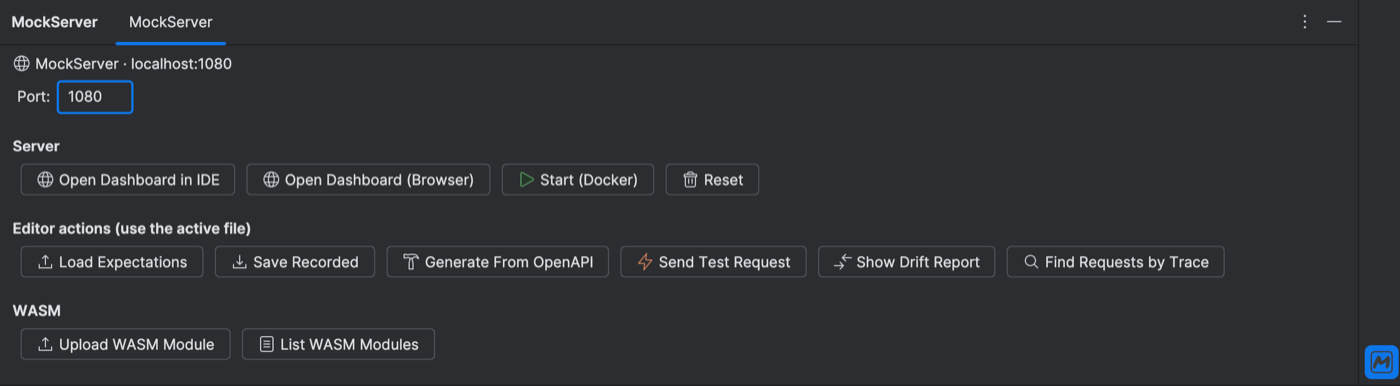
All actions are also available under Tools > MockServer:
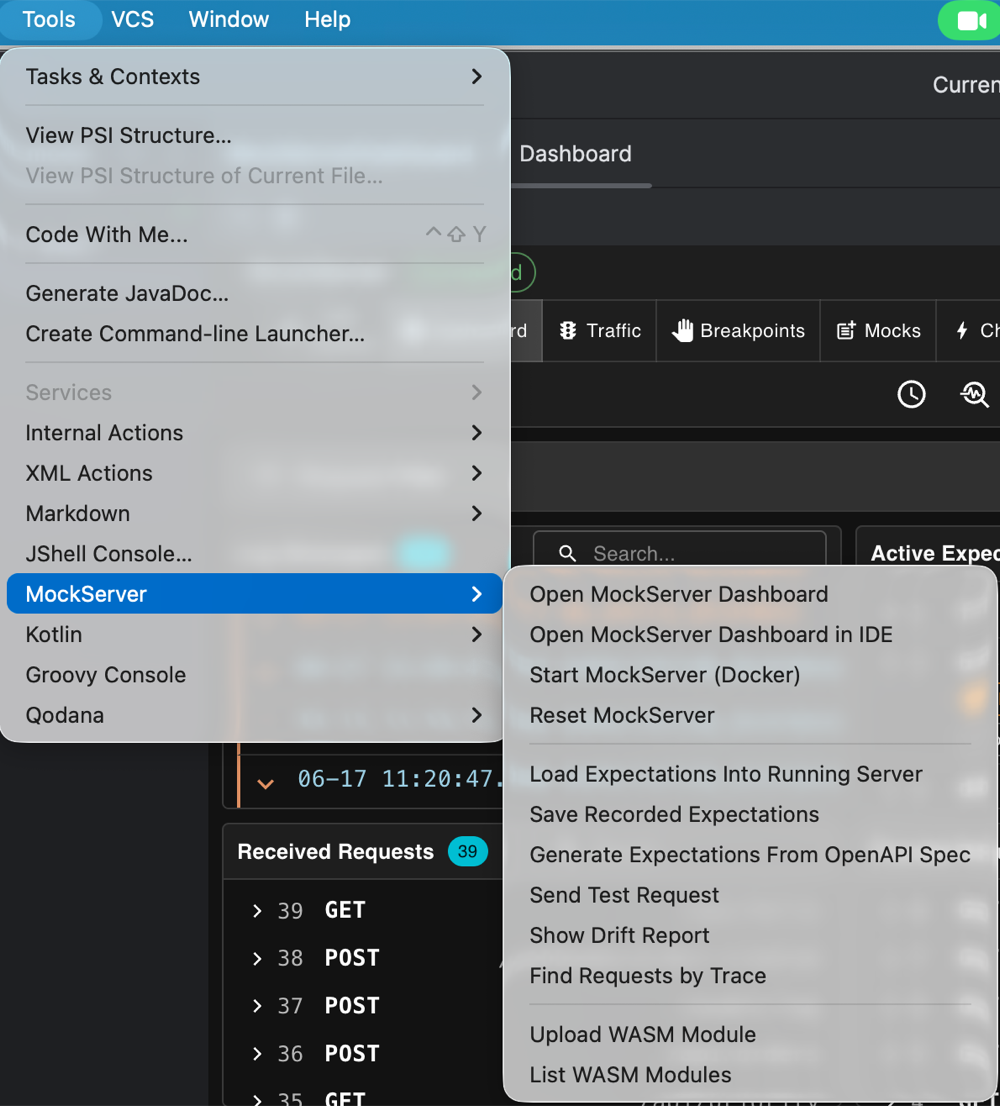
Actions
| Group | Action | What it does |
|---|---|---|
| Server | Start (Docker) | Runs docker run -d --rm -p 1080:1080 mockserver/mockserver:9.0.0 (or the image configured in Settings). Requires Docker. |
| Start (binary, no Docker) | Starts MockServer from a self-contained binary bundle (a bundled Java runtime + jar — no Docker or separate JDK). Uses the configured Binary bundle path if set, otherwise (after confirmation) downloads the bundle matching the plugin version for your OS/architecture and caches it. The download is checksum-verified fail-closed — if the .sha256 can't be fetched you're asked to confirm before installing unverified. The server is stopped automatically when the IDE closes. Ideal for corporate machines without Docker. | |
| Stop (binary) | Stops the MockServer process started by Start (binary, no Docker) | |
| Reset | Clears all expectations, logs, and state on the running server — equivalent to PUT /mockserver/reset | |
| Dashboard | Open Dashboard (browser) | Opens http://localhost:<port>/mockserver/dashboard in the system browser |
| Open Dashboard in IDE | Embeds the live Dashboard as a JCEF tool window inside the IDE | |
| Show Drift Report | Fetches the drift analysis from the server and opens a readable drift report in an editor tab, listing the expectations whose stubs differ from the real upstream | |
| Find Requests by Trace | Looks up all logged requests for a given W3C trace ID and displays them in the IDE | |
| Send Test Request | Sends a configurable HTTP request to MockServer and shows the response inline | |
| Expectations | Load Expectations Into Running Server | Sends the expectations in the active *.mockserver.json(c) editor file to the running server |
| Save Recorded Expectations (JSON) | Downloads proxied requests from the server and saves them as a *.mockserver.json expectation file | |
| Save Recorded Expectations (Java DSL) | Downloads proxied requests and saves them as Java DSL code you can paste directly into a test class | |
| OpenAPI | Generate From OpenAPI Spec | Generates mock expectations from an OpenAPI specification file and loads them into MockServer in one step |
| WASM | Upload WASM Module | Uploads a compiled .wasm custom rule module to the running server |
| List WASM Modules | Lists the WASM rule modules currently loaded on the server |
Authoring Expectations in the IDE
Files named *.mockserver.json or *.mockserver.jsonc are automatically validated and completed against the bundled MockServer JSON Schema. IntelliJ's built-in JSON editor provides auto-completion, inline validation, and hover documentation for every expectation field — so you can author complex expectations with full IDE assistance.
Once an expectation file is ready, the Load Expectations action sends it directly to the running server. You can also use Save Recorded Expectations to capture real traffic as a replayable expectation file (JSON) or paste-ready test code (Java DSL).
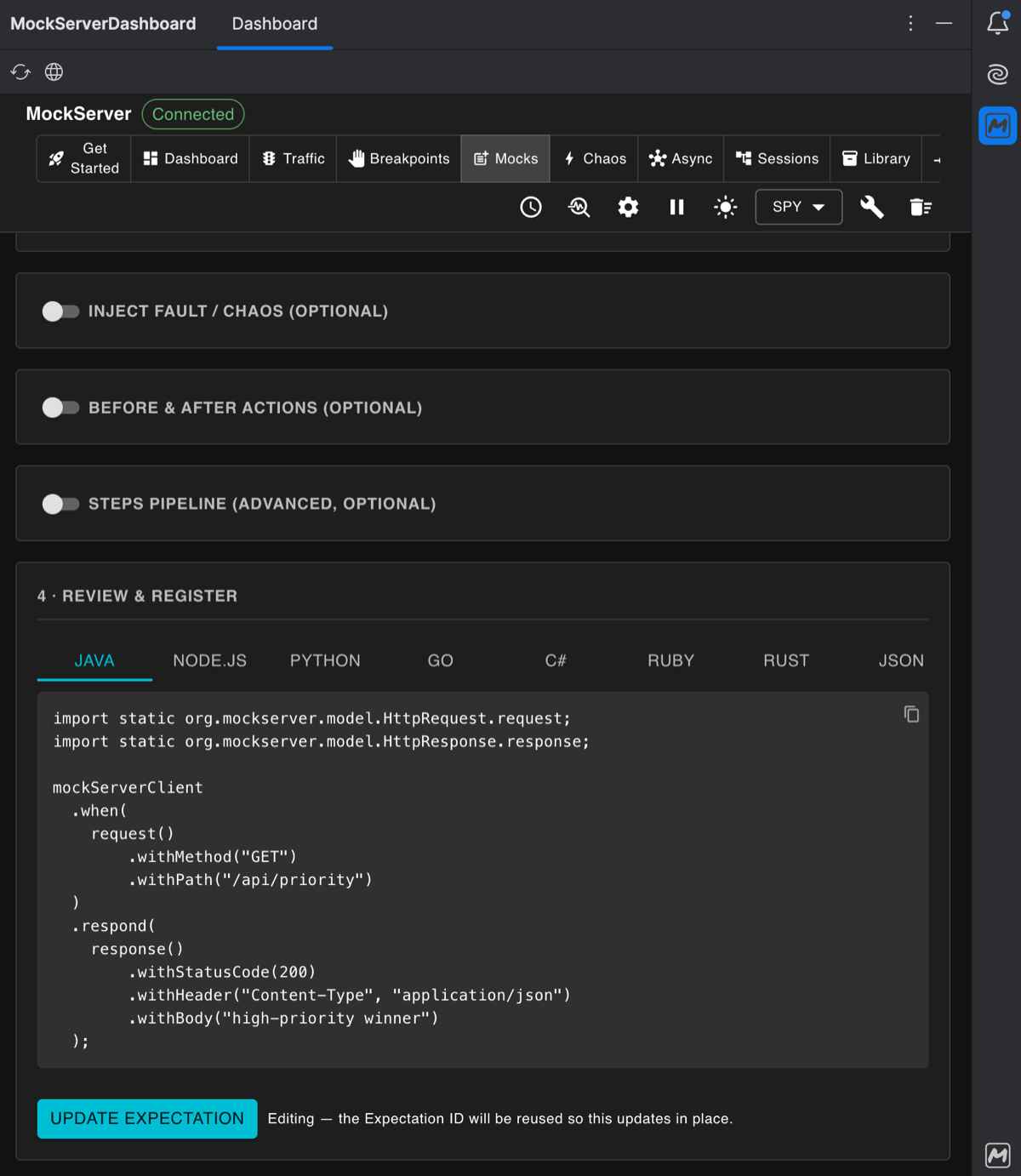
The Dashboard's expectation builder shows the current expectation in multiple languages — choose the code export that matches your test stack:
Settings
Configure the plugin via Settings > Tools > MockServer:
- Docker image — override the image used by Start (Docker); defaults to mockserver/mockserver:9.0.0
- Container name — name for the started Docker container
- Port — port MockServer listens on; defaults to 1080 (also editable directly in the tool window)
- Binary bundle path (no Docker) — path to a locally-installed binary bundle for Start (binary, no Docker): either the bin/mockserver launcher or the unpacked bundle directory. Leave empty to download and cache the bundle matching the plugin version on first use
Quick Start
- Install the plugin and restart the IDE
- Click Start (Docker) in the MockServer tool window (bottom panel), or set the Port field to point at an already-running instance
- Click Open Dashboard in IDE to open the embedded Dashboard — inspect live traffic and active expectations without switching windows
- Create a file named expectations.mockserver.json — schema validation and auto-completion activate automatically
- Click Load Expectations to send expectations to the server, then use Show Drift Report to spot where the real upstream has drifted from your stubs
- Proxy real traffic, then run Save Recorded Expectations (Java DSL) to turn captured requests straight into paste-ready test code (or (JSON) for a replayable expectation file)
For more information see MockServer Dashboard and Running MockServer.