Debugging HTTP Traffic with AI Assistants
When an API call fails, ask your AI assistant to capture the real traffic and tell you why — it sets up the proxy, retrieves the request/response, and pinpoints the mismatched header or status itself.
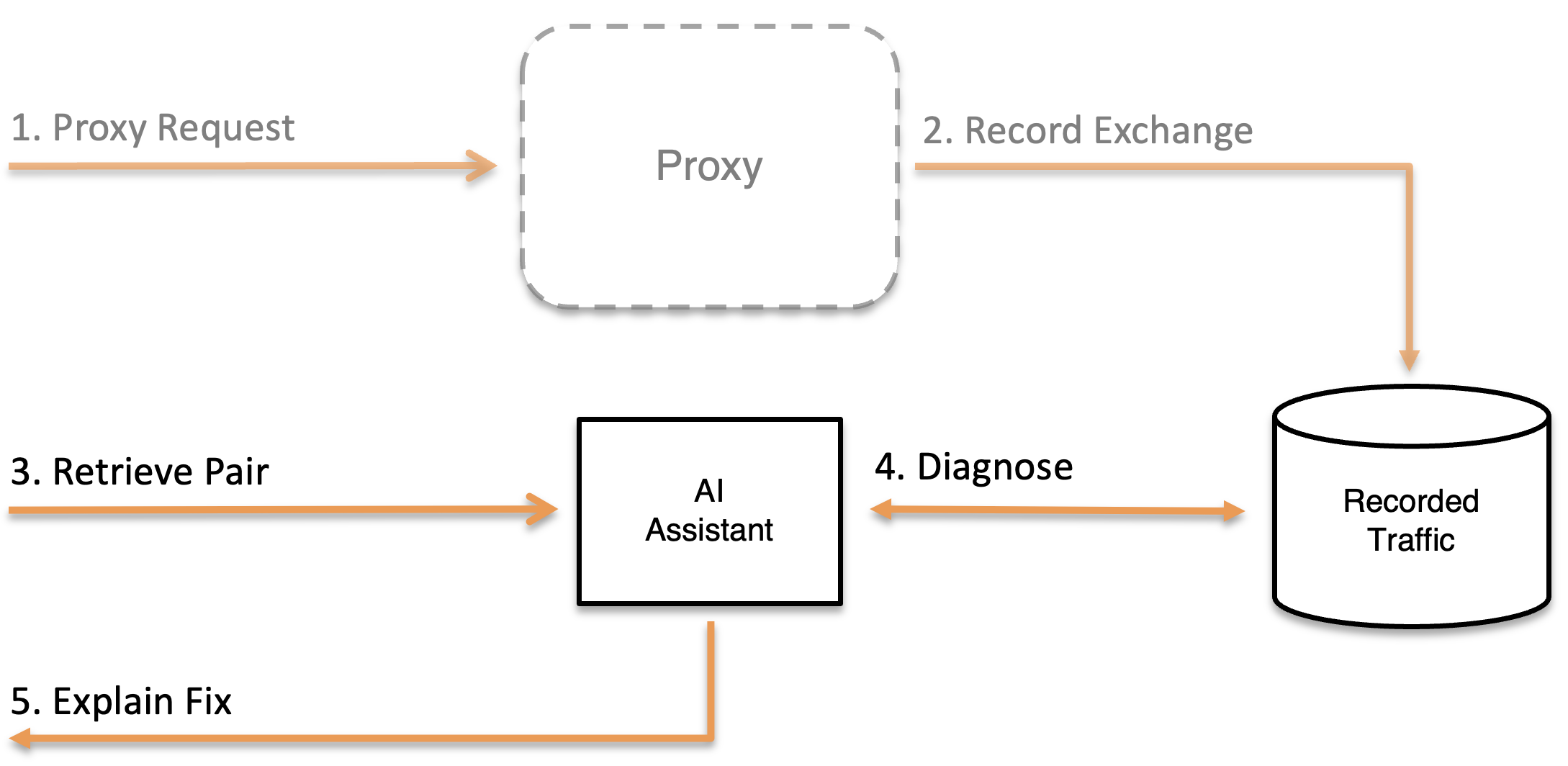
Overview
The debugging workflow follows four steps:
- Set up a forwarding proxy to capture traffic
- Send traffic through MockServer
- Retrieve recorded request-response pairs for analysis
- Diagnose mismatches when requests don't match expectations
Throughout this workflow, your AI assistant — such as Claude Code or OpenCode, or any other MCP-capable coding agent — uses MockServer's MCP tools to interact with the server. You describe the problem in natural language and the assistant handles the API calls.
Step 1: Set Up a Forwarding Proxy
Ask your AI assistant to configure MockServer as a forwarding proxy. This records all traffic while passing requests through to the real destination.
Example prompt:
"Set up MockServer to proxy all requests to /api/* to api.example.com on port 443 over HTTPS"
The AI assistant will use the create_forward_expectation tool:
{
  "name": "create_forward_expectation",
  "arguments": {
    "path": "/api/.*",
    "host": "api.example.com",
    "port": 443,
    "scheme": "HTTPS"
  }
}
Now any request sent to http://localhost:1080/api/... will be forwarded to https://api.example.com/api/... and both the request and response will be recorded.
Step 2: Send Traffic Through MockServer
Configure your application or test to send requests through MockServer instead of directly to the destination. This typically means changing the base URL in your application configuration:
# Before (direct)
API_BASE_URL=https://api.example.com

# After (through MockServer)
API_BASE_URL=http://localhost:1080
For AI applications, point the LLM client's base URL at MockServer so every model call is recorded. The examples below use LangChain and LangGraph, but the same approach works for any agent framework, LLM SDK, or HTTP client that lets you override the base URL. They assume a forwarding proxy is already in place for the provider (Step 1) — for example forwarding /v1/.* to api.openai.com or api.anthropic.com.
LangChain
LangChain chat model clients accept a base URL override — set it to MockServer:
from langchain_openai import ChatOpenAI

# Route the model client through MockServer instead of calling the provider directly
llm = ChatOpenAI(
    model="gpt-4o",
    base_url="http://localhost:1080/v1",
    api_key="sk-...",
)
The same applies to other providers — for example ChatAnthropic(model="claude-sonnet-4-20250514", base_url="http://localhost:1080").
LangGraph
A LangGraph graph makes its HTTP calls through the LangChain model objects bound to its nodes, so the same base URL override applies. Configure the model before building the graph:
from langchain_anthropic import ChatAnthropic
from langgraph.prebuilt import create_react_agent

model = ChatAnthropic(
    model="claude-sonnet-4-20250514",
    base_url="http://localhost:1080",
)

# Every model call made by the agent's nodes is now recorded by MockServer
agent = create_react_agent(model, tools=tools)
If your AI agent or SDK does not allow the base URL to be changed, use MockServer as an HTTPS proxy instead — see AI Traffic Inspection.
Then run your application or test scenario as normal. MockServer will forward all requests and record the traffic.
Step 3: Retrieve Recorded Traffic
Ask your AI assistant to retrieve the recorded request-response pairs for analysis.
Example prompt:
"Show me all requests and responses to /api/payments"
The assistant will use the retrieve_request_responses tool to fetch the recorded data, then present it in a readable format with analysis of status codes, response times, headers, and body content.
Step 4: Diagnose Mismatches
When a request doesn't match an expectation you've configured, the debug_request_mismatch tool provides detailed information about why the match failed.
Example prompt:
"Why didn't my POST to /api/users match the mock I set up?"
The assistant will use the tool to compare your request against active expectations and report the specific fields that didn't match — such as a missing header, incorrect content type, or a path mismatch.
Example AI Prompts for Common Debugging Scenarios
Here are practical prompts you can use with your AI assistant for common debugging tasks:
"Why is my API call returning 500?"
The assistant will:
- Use
retrieve_request_responsesto find the failing request and its response - Analyse the response body for error details
- Check whether the request matched a mock or was forwarded to a real server
- Suggest fixes based on the error details
"Show me all requests to /api/payments in the last 5 minutes"
The assistant will:
- Use
retrieve_recorded_requestsfiltered by the path - Present the requests in chronological order with method, headers, and body
- Highlight any unusual patterns (e.g., repeated requests, missing headers)
"Why didn't my request match the mock I set up?"
The assistant will:
- Read the
mockserver://expectationsresource to see active expectations - Use
debug_request_mismatchwith the request details - Report exactly which fields mismatched (e.g., "expected content-type application/json but received text/plain")
- Suggest corrections to either the expectation or the request
"Set up a proxy to capture traffic between my service and the payment API"
The assistant will:
- Use
create_forward_expectationto set up forwarding - Confirm the proxy is active
- Explain how to point your service at MockServer
- Offer to retrieve and analyse the captured traffic after you run your test
"Trace the full lifecycle of a specific request"
The assistant will:
- Use the dedicated
retrieve_logstool to find recent log entries and identify the correlation ID for the request (orraw_retrievewith typeLOGSfor the full retrieve format) - Use
retrieve_logswith thecorrelationIdparameter to get all log entries for that specific request - Present the full lifecycle: request received → expectation matching attempts → match result → response returned
- Highlight which expectations were compared and why each didn't match
This is particularly useful for intermittent failures where you need to understand exactly what happened for a specific request.
"Why are my test requests getting 404s?"
After a failed test run where requests returned 404 (no matching expectation), the assistant can diagnose all mismatches at once:
The assistant will:
- Use
explain_unmatched_requeststo retrieve all recent requests that matched no expectation - For each unmatched request, show the ranked closest expectations with field-level diffs
- Provide actionable remediation hints such as "use method POST not GET", "add trailing slash", or "add missing header Authorization"
- Suggest specific fixes to either the expectations or the test code
This is the fastest way to diagnose mismatches after a test failure. Unlike debug_request_mismatch (which requires you to reconstruct the failing request), explain_unmatched_requests works from MockServer's own traffic log, so there is nothing to reconstruct.
The tool is also available as a REST endpoint (PUT /mockserver/explainUnmatched) and as an MCP resource (mockserver://unmatched).
Observe Then Mock: From Live Traffic to Active Expectations
Once you have recorded live traffic through a forwarding proxy (steps 1-3 above), you can convert that recorded traffic into active mock expectations in a single step using create_expectations_from_recorded_traffic. This "observe then mock" workflow lets you point MockServer at a real API once, record the responses, and then switch to mocked responses for repeatable offline testing.
Example prompt:
"Convert all the traffic you just recorded into mock expectations so I can run tests offline"
The assistant will:
- Use
create_expectations_from_recorded_trafficwithpreview=trueto show you the expectations that would be created - After your confirmation, call it again with
preview=falseto activate them - Optionally filter by method or path if you only want to mock a subset of the traffic
Tips for Effective AI-Assisted Debugging
- Be specific about paths and methods. Instead of "check my API calls", say "show me POST requests to /api/orders". This helps the assistant construct precise queries.
- Start with
reset. Before a debugging session, ask the assistant to reset MockServer so you have a clean slate without noise from previous tests. - Use forwarding proxies for live debugging. Rather than creating mock responses, set up forwarding to capture real traffic. This lets you see actual server responses.
- Ask follow-up questions. After the assistant shows you recorded traffic, ask questions like "why does request #3 have a different response?" or "what's different about the headers on the failed request?"
- Combine with verification. After fixing an issue, ask the assistant to set up a
verify_requestcheck so you can confirm the fix works: "Verify that POST /api/orders is called exactly once with a valid Authorization header."
Related Pages
- MCP Setup — how to connect your AI assistant to MockServer
- MCP Tools Reference — full documentation of all MCP tools
- AI Traffic Inspection — use MockServer as an HTTPS proxy to inspect the raw LLM API and MCP calls your AI agent makes (prompts, tokens, tool calls, streamed responses)
- Contract Verification — verify recorded traffic and run contract/resiliency tests against an OpenAPI spec
- Logging & Debugging — traditional (non-AI) debugging approaches
- Troubleshooting Matching — step-by-step checklist, common pitfalls, and the debug mismatch endpoint
AI Integration — See Also
- MCP Setup — connect Claude Code, Cursor, Windsurf, Cline, or OpenCode to MockServer's built-in MCP endpoint
- MCP Tools Reference — full documentation of all MCP tools, parameters, and resources
- Debugging with AI — workflows for using AI assistants to debug HTTP traffic via MCP
- AI Traffic Inspection — inspect and record LLM/MCP traffic for debugging and deterministic replay
- OpenAPI Contract Verification — verify recorded traffic and run contract/resiliency tests against an OpenAPI spec
- OpenAPI for AI — use MockServer's OpenAPI spec as a fallback for AI tools without MCP support
- AI Protocol Mocking (MCP & A2A) — mock MCP servers and A2A agents your AI application depends on
- LLM Response Mocking — mock LLM API responses from OpenAI, Anthropic, Gemini, Bedrock, Azure OpenAI, and Ollama with provider-correct formatting, streaming, conversations, and chaos
- LLM Cost Optimisation — export a one-click optimisation brief (Markdown) or JSON bundle from captured LLM traffic to find ways to cut inference cost
- llms.txt — machine-readable index of MockServer documentation for AI assistants and LLMs